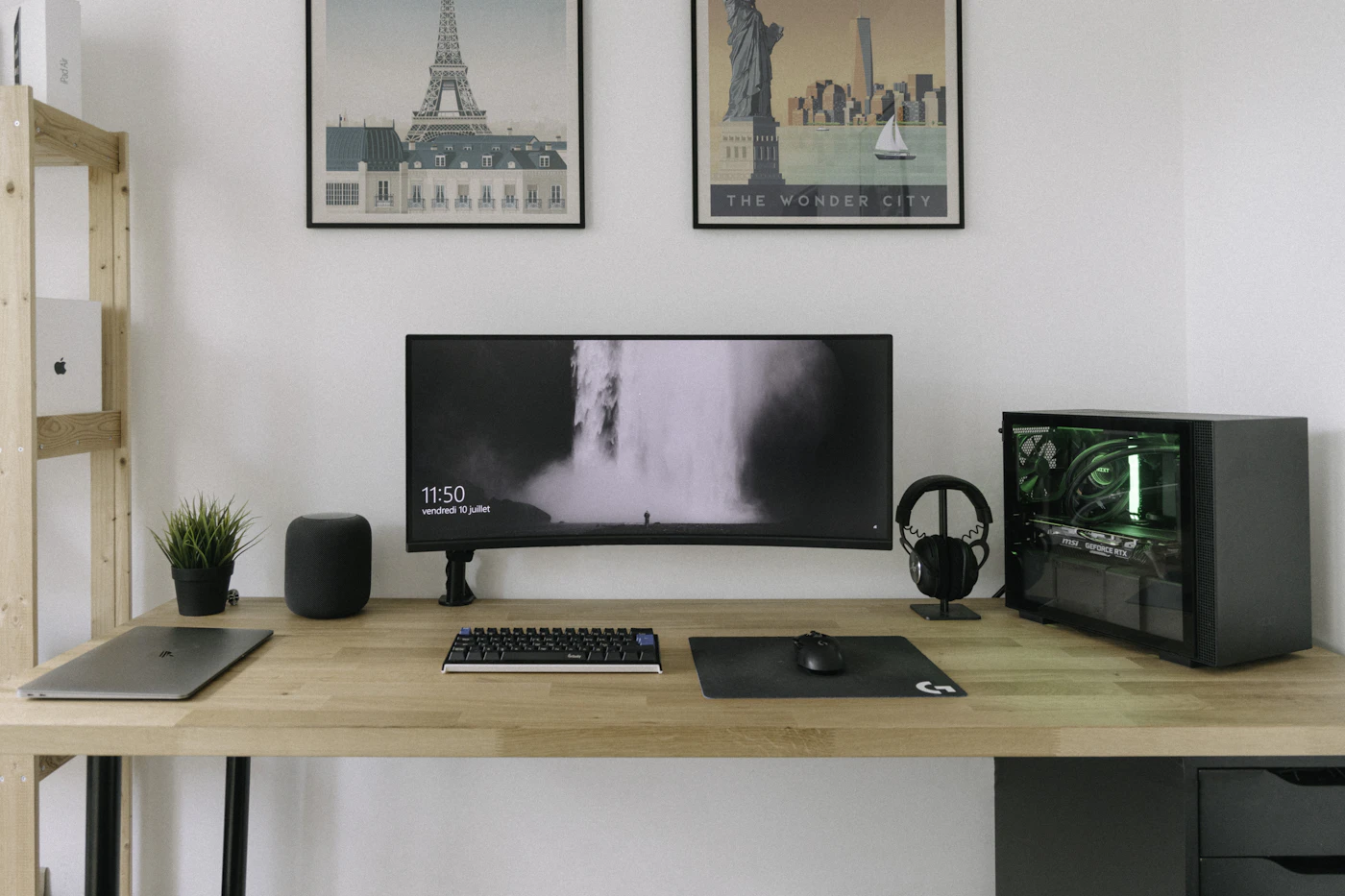
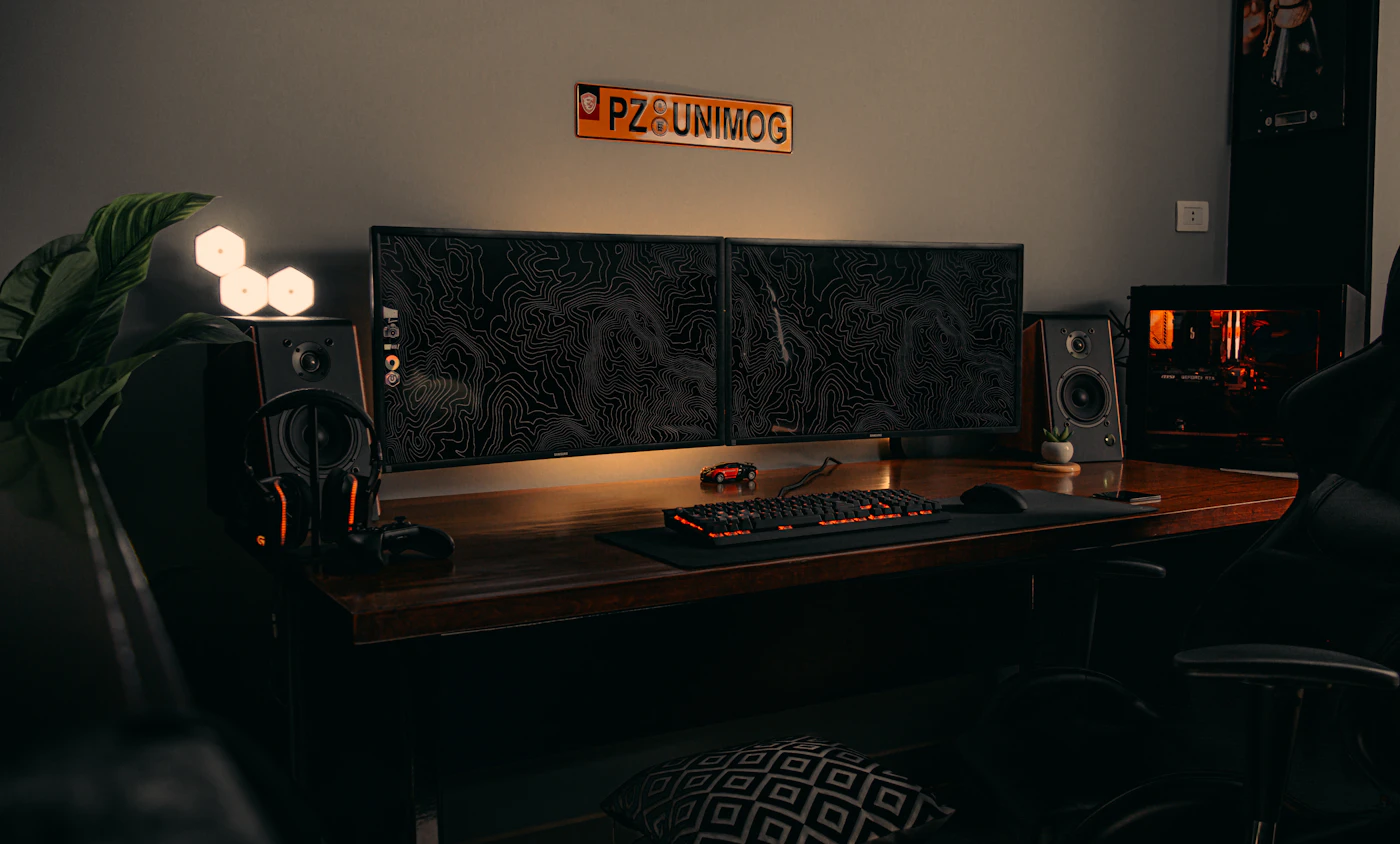
A larger screen promises more room for work, but on a shallow desk it can leave nowhere for a notebook, push the keyboard to the edge, or force you to turn your head constantly. A small desk deserves a monitor selected around its physical limitations. The best purchase makes everyday tasks easier without taking over the room.
Picture a desk in the corner of a bedroom. During the day it handles spreadsheets and video calls; in the evening it becomes a place to pay bills or plan a holiday. The laptop currently sits on a stack of books. Before replacing that arrangement with the widest display in the shop, measure how you sit and what must remain within reach.
Measure the whole setup
Record desk width, usable depth, and the distance from your eyes to the proposed screen position. Include the space needed for a keyboard, mouse, and notebook. Measure the monitor’s stand footprint, not simply its advertised diagonal. Some stands extend well forward of the screen and consume precisely the area your hands need.
Use paper or cardboard to represent the monitor’s published width and the stand’s footprint. This is a low-cost way to judge whether a display will feel crowded. Leave room for the laptop if it must remain open for a camera or second screen. A closed-lid arrangement needs its own power and operating-system checks.
Monitor arms can recover desk surface, but they are not automatically suitable. Check the desk’s thickness, edge shape, load capacity, and the monitor’s weight and mounting specification. A thin hollow desktop or inaccessible rear edge may make a clamp mount a poor solution. Do not assume every desk can safely carry an arm.
Resolution should serve your text
Diagonal size and resolution together determine how much information fits and how small it appears. At a fixed size, more pixels can make text sharper, but operating-system scaling affects usable workspace. A high-resolution display at enlarged scaling may be more comfortable than a lower-resolution display showing everything at tiny sizes.
Bring the decision back to tasks. For a student reading documents and writing essays, readable text and a stable stand may matter more than extra refresh rate. For someone working across spreadsheet columns, a larger usable workspace has clearer value. For casual evening games, motion performance may enter the decision, but it should not erase the desk’s space constraints.
If possible, view your usual kind of document on a comparable screen before buying. Product photos and colorful landscapes make almost any panel look appealing. Small black text, browser toolbars, and worksheet grids reveal whether the size and scaling fit your habits.
Stand adjustment is a useful upgrade
A height-adjustable stand helps place the screen comfortably without improvised stacks. Tilt and swivel are useful when the desk is shared or when the monitor must be angled away from a window. Portrait rotation can suit long documents, though it also requires space above the desk and cables with enough slack.
The Dell P2425H product page is one example of a compact office-monitor listing to examine. Compare its current dimensions, stand adjustments, and ports with alternatives rather than assuming that a familiar brand or a 24-inch class label settles the choice. Model suffixes matter when shopping.
If two people use the same desk, ask whether adjustment controls are easy to reach. A technically adjustable display that is awkward to move may simply stay at the wrong height. Comfortable placement is a daily benefit; a feature you avoid using has little practical value.
Read the ports carefully
Check both ends of the connection: the computer’s output and the monitor’s input. USB-C on a monitor might be a downstream accessory port, not a video input or laptop-charging connection. Look specifically for video input, upstream USB, and power-delivery details in the specification table.
A monitor with suitable USB-C video and charging can simplify a laptop desk, but verify the supplied cable and supported laptop charging power. An HDMI monitor may be just as sensible when your computer already has HDMI and you do not mind a separate charger. Fewer cables are a convenience, not a universal requirement.
Plan the webcam too. A bulky external camera on top of a slim monitor changes the setup’s overall height. If the laptop camera remains in use, placing the laptop far to one side can make calls feel awkward. Place the camera and display around the way you communicate.
Glare and placement come before extras
Position the display so a bright window does not sit directly behind you or behind the screen if you can. Check how afternoon light falls on the desk. A matte surface may help manage reflections, but no finish makes poor room placement irrelevant. A controllable lamp can be more useful than chasing marketing claims about a panel.
Brightness, color accuracy, and advanced video features should match the work. Everyday documents rarely justify the same purchase as professional color grading. If you edit photographs for print, research calibration and color coverage separately rather than treating a general office guide as a substitute.
A sensible shortlist
Compare two or three monitors using six points: measured footprint, comfortable text, stand adjustments, exact input compatibility, included cables, and return terms. Budget for any arm or adapter you actually need. Buy additional resolution or connectivity when it solves a specific limitation, not because the specification list is longer.
During the return period, try your normal desk tasks and check sleep, wake, brightness controls, and text scaling. For a desk that moves between rooms, compare a portable monitor for hybrid work. For multiple peripherals, our hub versus dock guide explains what the monitor connection needs from your computer.
Sources & editorial notes
Manufacturer information checked on October 4, 2026. Features can vary by model and country. Confirm the exact version before purchasing. Lifestyle photos illustrate the setting; they do not document product testing.
Read our editorial policy